How to Get NYC Train Times Delivered to Your Lock Screen Automatically
TL;DR: Commutely v1.1 lets you schedule your regular commute times. Tell the app you leave at 7:15am on Tuesdays, Wednesdays, and Thursdays, and it automatically sends your train times to your lock screen. No tapping required — just glance and go.
It was snowing nonstop in NYC, so I used a few hours between shoveling to build a feature I'd been wanting: scheduled notifications.
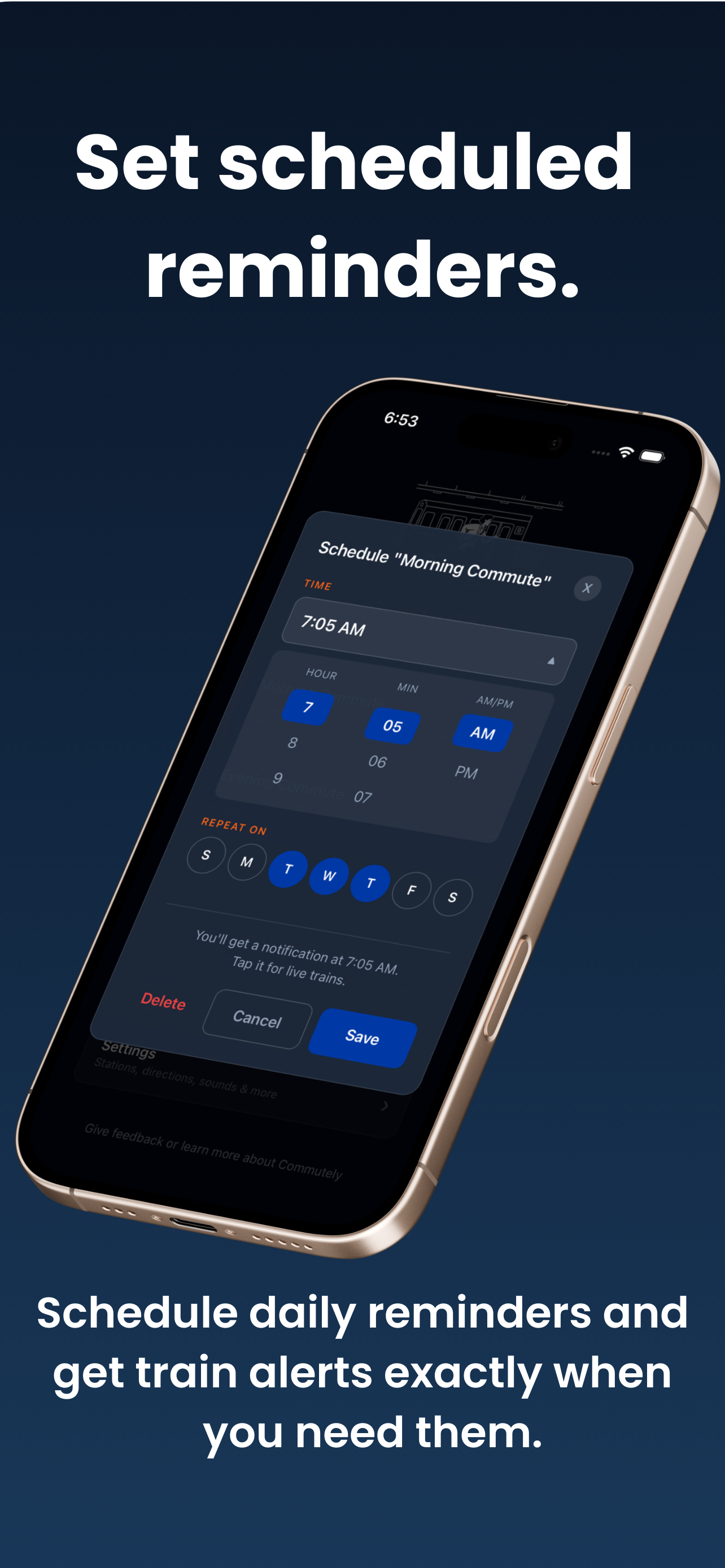
Now you can tell Commutely your regular schedule — say you take the train 3 days a week and usually leave your apartment at 7:15am — and it'll automatically send your train times right when you need them. No checking. No tapping. Just glance and go.
The Problem with Remembering to Check
Commutely already shows train times in 2 seconds with Quick Actions. But even that requires you to remember to check.
For commuters with a regular schedule, the pattern is predictable: same time, same days, same stations. What if the app just knew when to show you trains?
How Scheduled Notifications Work
Setting it up takes 30 seconds:
- From the home screen, long-press on the trip you want to schedule
- A menu appears with three options: Rename, Schedule, or Delete
- Tap "Schedule"
- Pick your departure time (7:15am, 8:30am, whatever)
- Select which days (perfect for hybrid workers doing T/W/Th)
- Save
That's it. At your scheduled time, you'll get a notification with your live train times. Tap it to start a Live Activity on your lock screen.
You can view and manage all your scheduled trips in Settings.
Making Commutely Invisible
I'm obsessed with making Commutely invisible — the best transit app is one you barely notice using.
Quick Actions removed the need to open an app. Long-press, tap, done.
Scheduled notifications remove the need to do anything at all. Train times just appear when you need them.
The goal is an app that just works in the background of your life.
Perfect for Hybrid Workers
If you're not in the office every day, this feature was built for you. Select only the days you commute — Tuesday, Wednesday, Thursday — and Commutely stays quiet on your WFH days.
No more getting subway notifications when you're working from your couch.
Try It Now
Scheduled notifications are available now in Commutely v1.1 on the App Store.
Set your schedule once, and your train times will be waiting for you every morning.
If this NYC subway app is saving you time, I'd really appreciate a quick review on the App Store — it helps other commuters find the app. And if you know someone who takes the same train every day, send them the link.
Frequently Asked Questions
How do I schedule automatic subway notifications?
Open Commutely, go to any trip, and tap 'Schedule'. Select your departure time and which days of the week. At that time, you'll get a notification with live train times — tap it to start a Live Activity.
Can I schedule notifications for multiple trips?
Yes. You can schedule your morning commute, evening commute, and any custom trips separately with different times and days.
What happens when I get the notification?
You'll receive a notification at your scheduled time. Tap it to instantly start a Live Activity showing real-time train arrivals on your lock screen.
Does this work if I don't commute every day?
Absolutely. You can select specific days — perfect for hybrid workers who only go to the office 2-3 days per week.